


A Night That Changed Everything
It was supposed to be another carefree evening with friends in a city we knew well—or at least thought we did. Dinner had wrapped up, and our group was making its way down the road to our next destination. The kind of night where everyone’s messaging friends, checking social feeds, doing what people do in 2026: existing through their screens.
We knew the reputation of this city. The crime statistics. The warnings about walking around at night with your phone out. But after several visits without incident, we had developed a collective blind spot. A false sense of security that would cost us dearly.
Standing at a red light, one foot already stepping into the crosswalk, a car approached slowly with its turn signal on. Nothing unusual, this was Uber territory and cars pulling up to curbs was background noise. We didn’t register it as a threat until it was already too late.
In one fluid motion, from the passenger window a figure pushed one friend aside, snatched the phone from another’s hand, and the car vanished into the night. The entire encounter lasted maybe three seconds.
The Clock Starts Ticking
Our immediate reaction was almost reflexive: open Find My, track the device. But the thieves were professionals, the first thing they did was enable airplane mode. Just like that, our digital lifeline to that device was severed.
Here’s where our fatal misunderstanding began. We comforted ourselves with what we thought was a solid security architecture: Banking apps, PayPal, Crypto wallets and Authenticator apps locked behind Face ID or a passcode.
We told ourselves we had time. The critical infrastructure was locked down, right? Filing a police report felt largely symbolic—these thieves would never be caught. An attempt was made to mark the device as stolen via iCloud, but in the stress of the moment, the password didn’t immediately come to mind. It could wait until we got home, about 90 minutes later.
1.5 Hours: The Window of Exploitation
When we finally walked through the door, the email notifications were already piling up. Find My being disabled. New device logins. Password reset confirmations. And then the financial carnage began:
- PayPal transfers in the thousands to unknown accounts
- A crypto wallet completely drained
- The realization that we had fundamentally misunderstood our own security
The Weak Link We Never Considered
The iPhone’s native Mail app. That was the Trojan horse we had never thought about.
Unlike banking apps, crypto wallets, and authentication tools, the iOS Mail client doesn’t require FaceID or a passcode to open by default. It’s just… there. Always accessible. Always syncing. And in that app sat the keys to the entire kingdom: email.
Email is the skeleton key of the digital age. With access to someone’s email, attackers can:
- Initiate password resets on virtually any account
- Receive confirmation codes for new device logins
- Bypass biometric locks by simply logging in on a fresh device
The thieves didn’t need to crack Face ID. They didn’t need to brute force a passcode. They just needed access to email, and the entire security house of cards came tumbling down.
The Hard Truth About Mobile Dependency
This incident forced us to confront an uncomfortable reality about modern life. Our phones are no longer just communication devices, they are:
- Our banking institutions
- Our identity documents
- Our photo archives
- Our social connections
- Our memories
And yet, most of us walk around with this single point of failure held loosely in our hands, often unlocked, often with our attention elsewhere. We trust that biometrics and app-level security will protect us. But as we learned the hard way, a phone stolen in an unlocked state bypasses many of these protections entirely.
The thieves who targeted us were professionals. They knew exactly what they were doing. They understood the exploit chain better than most cybersecurity professionals:
- Steal phone in unlocked state
- Immediately isolate it from network tracking (airplane mode)
- Access email client (no biometric protection by default)
- Use email to reset passwords and authorize new devices
- Drain financial accounts before the victim can respond
All of this happened in under two hours. By the time most people would even realize the full scope of the compromise, the damage is already done.
What We Learned
That night became a crash course in just how fragile our digital security actually is. We spent hours changing passwords, revoking device authorizations, contacting banks, and attempting to lock down every account connected to the stolen device.
But the experience left us with a burning question: How do you harden your security for a scenario where your phone is stolen while unlocked?
Because here’s the terrifying truth, if sophisticated thieves get their hands on your unlocked device, you’re operating on a timer measured in minutes, not hours. Every second counts. And the default security settings on most phones are simply not designed with this threat model in mind.
What Comes Next
In the aftermath of this incident, we spent some time researching ways to protect our iOS devices in the event of theft. What follows is a practical guide to settings and shortcuts that can buy you precious time if the worst happens.
Stolen Device Protection
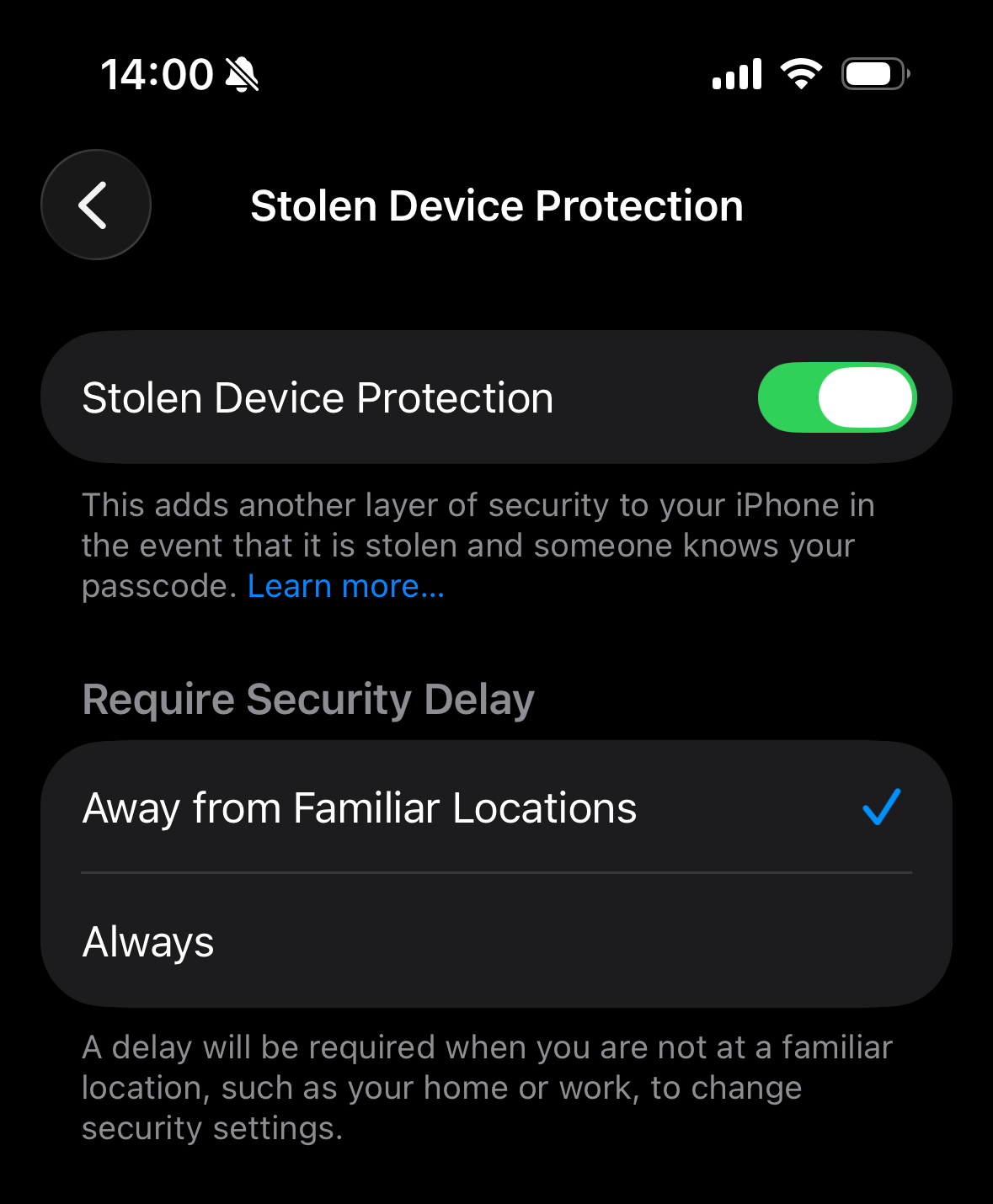
First things first, you should turn on Stolen Device Protection. With this setting on, Find My can’t be turned off and as soon as your phone is away from familiar locations such as home or work, a one hour security delay is activated on some security actions like changing your Apple Account password. Additionally, Face ID is required for accessing stored passwords or credit cards:
- Go to Settings, then tap Face ID & Passcode.
- Enter your device passcode.
- Tap Stolen Device Protection, then turn Stolen Device Protection on.
Require Face ID
Next is a setting many might not be familiar with: since iOS 18 you can require Face ID for almost any app, regardless of whether the app itself supports it:
- Long press an app on your home screen
- Tap Require Face ID
- Confirm the action.
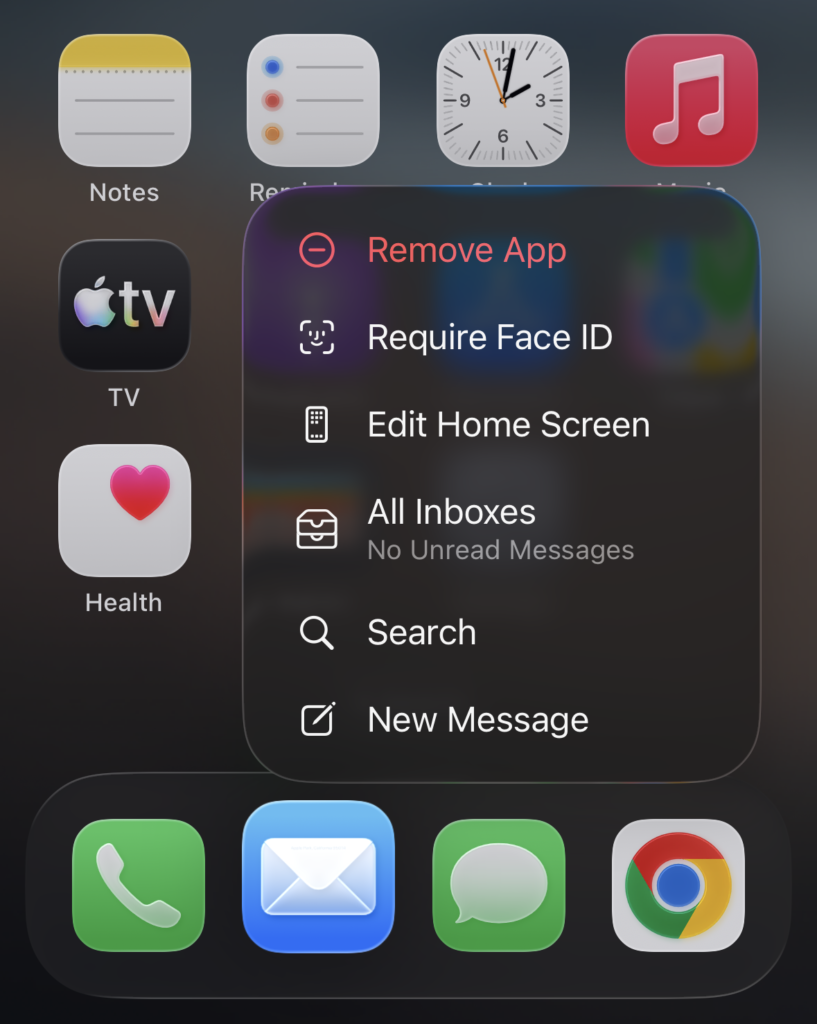
That’s it! One critical app you should definitely put behind Face ID is the native Mail app, should you use that for syncing your emails. Much of the consequences with the theft described above could have been avoided if emails were not accessible by the thieves.
Keeping up Connectivity
We’ve now protected ourselves against immediate changes to critical settings like passwords and access to important apps like Mail. However, if we want to have any chance of getting our device back, we need to prevent thieves from being able to completely cut a device’s connectivity. To achieve this we created two simple shortcuts that restrict access to Settings and Airplane Mode itself:
- Open the shortcuts app and go to Library
- Tap the + in the top right corner
- Configure the shortcuts according to the screenshots below
- Switch to Automation
- Tap the + in the top right corner
- Set up the automations according to the screenshots below.
- Set each automation to Run Immediately and toggle off Notify When Run
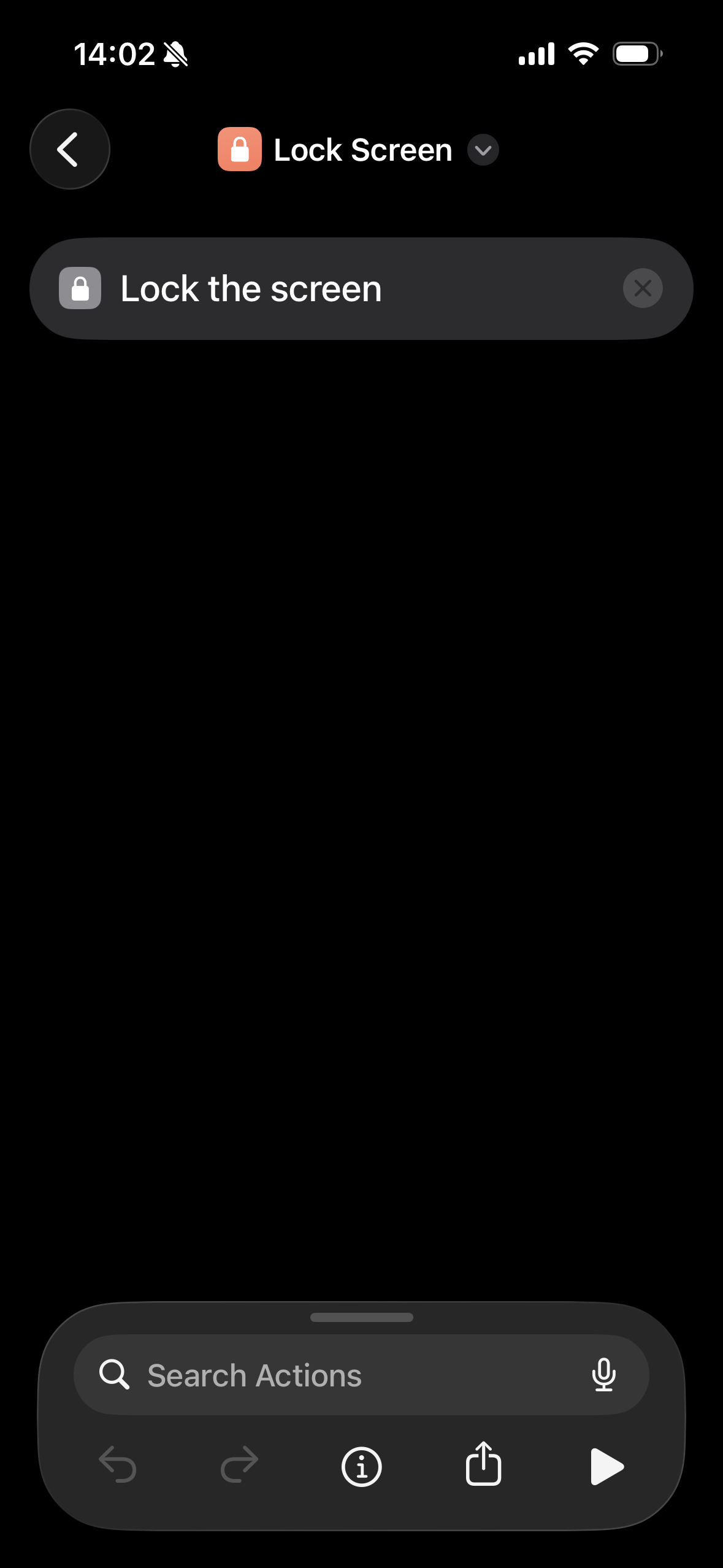
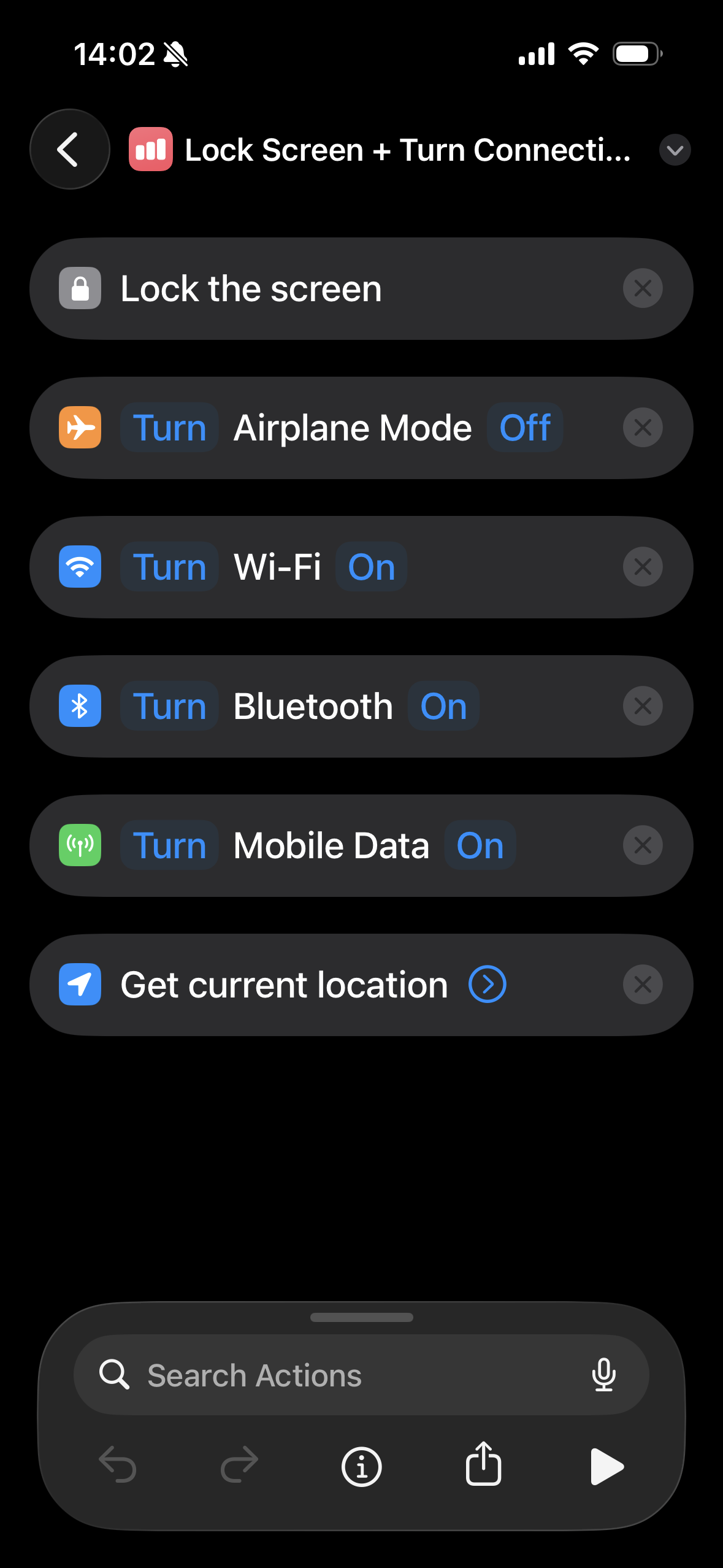
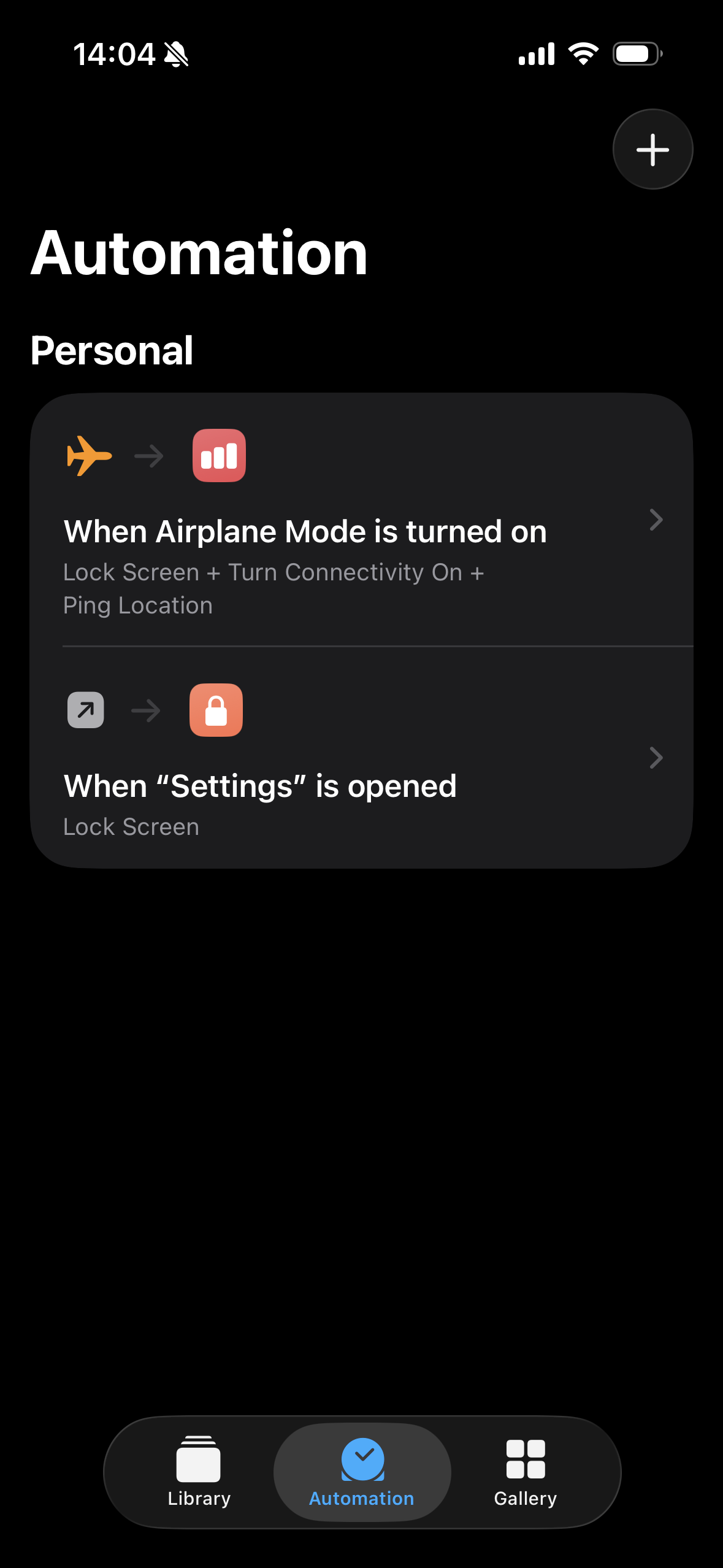
The Settings shortcut triggers a Lock Screen whenever Settings are opened, which means thieves lock themselves out of the device whenever they try to do so. The Airplane Mode shortcut essentially does the same thing when thieves try to enable Airplane Mode through the Control Centre. On top of that the shortcut activates every connectivity setting on the device and pings the current location to be able to track the device. Please note that with the Airplane Mode shortcut activated, Airplane Mode can’t be enabled at all. If you need Airplane Mode, disable the shortcut first.
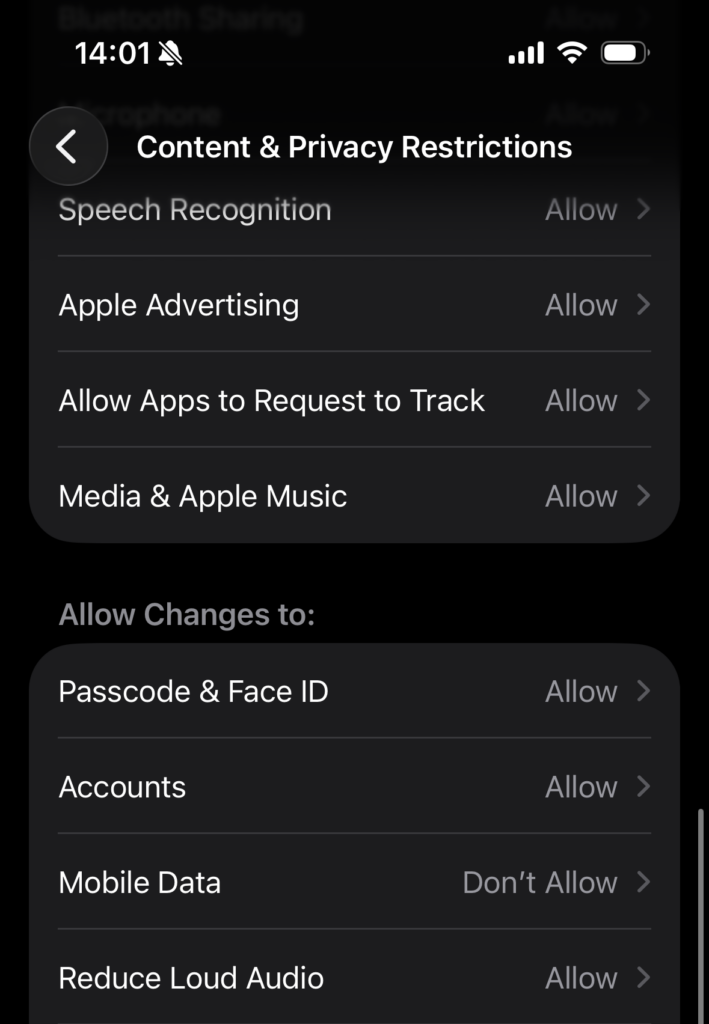
To complete the protection of connectivity settings, there is another hidden setting that prevents you from disabling mobile data from the Control Centre:
- Go to Settings, then tap Screen Time
- Tap Content & Privacy Restrictions
- Toggle on Content & Privacy Restrictions
- Scroll down to and tap Mobile Data
- Set to Don’t allow
Disabling Control Centre While Device Is Locked
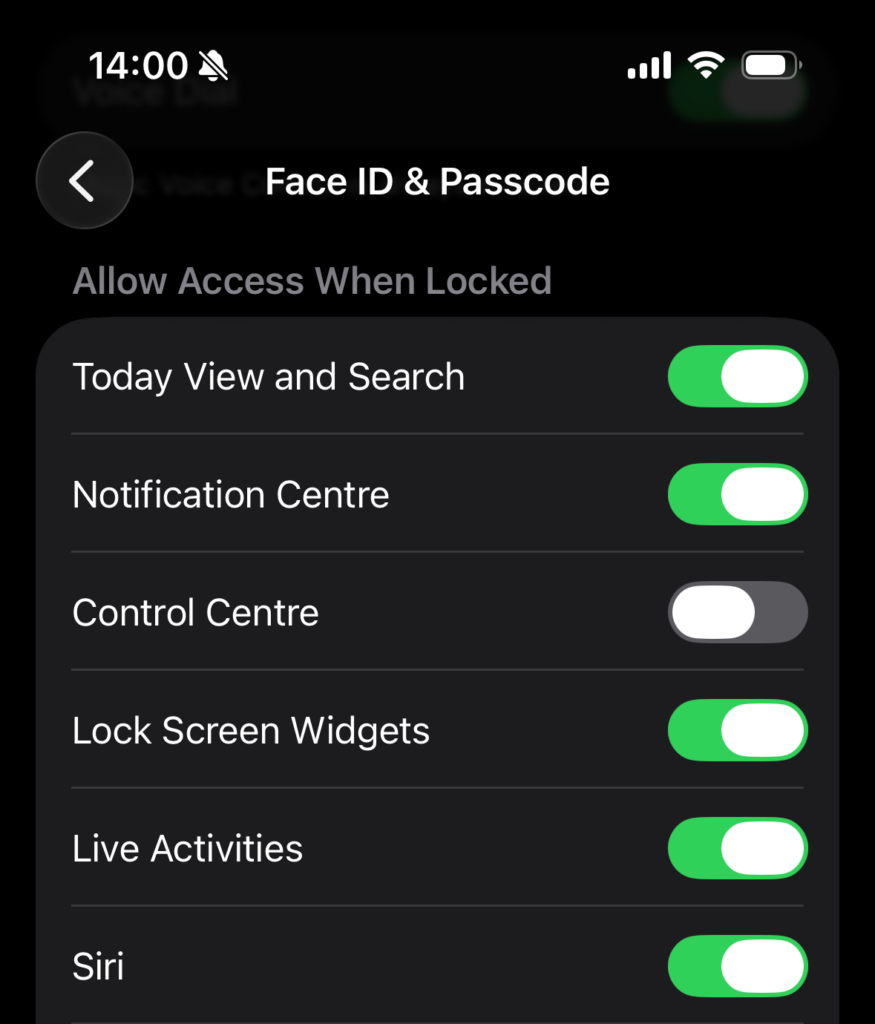
Finally, there is another setting to disable the Control Centre completely while the device is locked. While this may not protect you if your device is stolen while unlocked, it is still recommended:
- Go to Settings, then tap Face ID & Passcode.
- Enter your device passcode.
- Scroll down to the Allow Access When Locked section
- Toggle off Control Centre
Take thirty minutes today to implement these safeguards and your future self, standing on a street corner watching your phone disappear into the night, will thank you. Thieves are counting on your complacency, don’t make it easy for them. Stay safe!